-
Courses

Courses
Choosing a course is one of the most important decisions you'll ever make! View our courses and see what our students and lecturers have to say about the courses you are interested in at the links below.
-
University Life

University Life
Each year more than 4,000 choose University of Galway as their University of choice. Find out what life at University of Galway is all about here.
-
About University of Galway

About University of Galway
Since 1845, University of Galway has been sharing the highest quality teaching and research with Ireland and the world. Find out what makes our University so special – from our distinguished history to the latest news and campus developments.
-
Colleges & Schools

Colleges & Schools
University of Galway has earned international recognition as a research-led university with a commitment to top quality teaching across a range of key areas of expertise.
-
Research & Innovation

Research & Innovation
University of Galway’s vibrant research community take on some of the most pressing challenges of our times.
-
Business & Industry

Guiding Breakthrough Research at University of Galway
We explore and facilitate commercial opportunities for the research community at University of Galway, as well as facilitating industry partnership.
-
Alumni & Friends

Alumni & Friends
There are 128,000 University of Galway alumni worldwide. Stay connected to your alumni community! Join our social networks and update your details online.
-
Community Engagement
Community Engagement
At University of Galway, we believe that the best learning takes place when you apply what you learn in a real world context. That's why many of our courses include work placements or community projects.
 Accessibility & Language
Image Slider



Slider Content Type
This content type works best on Home or Landing pages. The Slider image is a link, you can link to a section in T4 or to an external link. Ideally, images should be 735 in width so that it will stretch on the page. Small images will stretch to fit the slider dimensions and will pixelate as a result. For instructions on how to create web-ready versions of images (that are the correct dimensions), see How to resize your image and make it web ready. The slider displays images of 'Background Image Path (CSS)' only. If you choose an image of type 'Foreground Image', it will not display. You cannot overlay text on the images.
You need to fully comply with copyright law. Ensure that you have the right to use any images you upload or insert onto your webpage. Further information is available on our Images FAQ page - Where can I find Images to use on my website.
Make sure the filename does not contain any spaces, and the file name has at least 3 characters (before the dot) or it might not upload. Also, remove any characters that are reserved for web addresses ( ! * ' ( ) ; : @ & = + $ , / ? %.
How to add a Slider to your page
- Go to the section you want to add the 'Slider' to
- Click on +Add content

- Add the 'Slider Container' content type to your section
- Give the content a Name
- Click Save changes to put your content on Pending

Or else,
Click on the small white arrow and click Save and approve to approve your content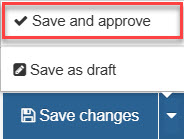
Next you will create a sub-section to hold your images
- Go to the site structure and click on the Actions button of the section where the Slider will be

- Choose Create section from the dropdown menu
- Give the section the Name 'Slider'
- Click Save changes to put your content on Pending
Or else,
Click on the small white arrow and click Save and approve to approve your content and return to the site structure
Next you will add your slides to the sub-section you just created - 'Slider'
- Click on the Actions button of the new sub-section you just created, called 'Slider'
- Click on +Add content, add the 'Slider - slides' content type for each slide you wish to add
- Give the image a Name
- Click on the Select media button to choose an image from your Media Library
- Find the image in the Media Library, ensure the image Type is 'Background Image / Image CSS'
- Click on the Actions button, choose Select media
- Fill in the Alt text field with a description for the image
- Click on the Section link or Content link to link to a section or content item in T4
or
put an external link in the External URL - Leave the Map and Map name fields empty
- Click Save changes to put your content on Pending
Or else,
Click on the small white arrow and click Save and approve to approve your content and return to the site structure. - Repeat steps 2 - 10 for each slide image you want to add.
- Once you have added your slide images, click on Save changes to return to the site structure.