-
Courses

Courses
Choosing a course is one of the most important decisions you'll ever make! View our courses and see what our students and lecturers have to say about the courses you are interested in at the links below.
-
University Life

University Life
Each year more than 4,000 choose University of Galway as their University of choice. Find out what life at University of Galway is all about here.
-
About University of Galway
About University of Galway
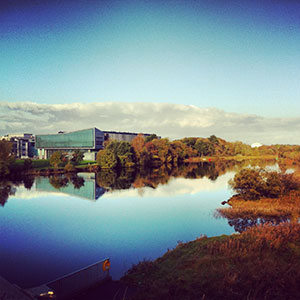
Since 1845, University of Galway has been sharing the highest quality teaching and research with Ireland and the world. Find out what makes our University so special – from our distinguished history to the latest news and campus developments.
-
Colleges & Schools
Colleges & Schools
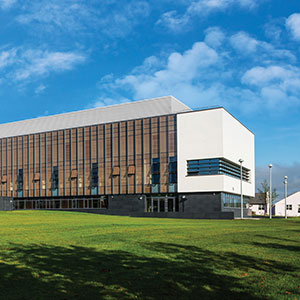
University of Galway has earned international recognition as a research-led university with a commitment to top quality teaching across a range of key areas of expertise.
-
Research & Innovation

Research & Innovation
University of Galway’s vibrant research community take on some of the most pressing challenges of our times.
-
Business & Industry
Guiding Breakthrough Research at University of Galway
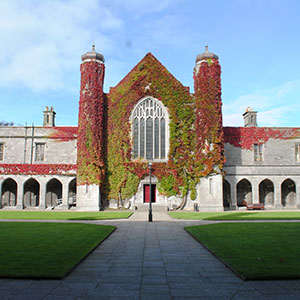
We explore and facilitate commercial opportunities for the research community at University of Galway, as well as facilitating industry partnership.
-
Alumni & Friends

Alumni & Friends
There are 128,000 University of Galway alumni worldwide. Stay connected to your alumni community! Join our social networks and update your details online.
-
Community Engagement
Community Engagement
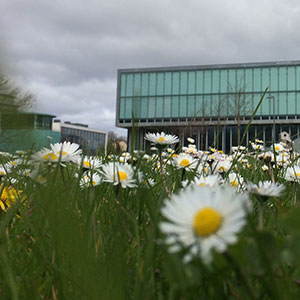
At University of Galway, we believe that the best learning takes place when you apply what you learn in a real world context. That's why many of our courses include work placements or community projects.
 Accessibility & Language
Landing Page Options
To make something appear on this line, modify your section, go to the 'Metadata' tab and type it into the field '3: Page Tagline'
Landing Pages
The first page, in your site, that visitors see, after clicking a link (in an email, search engine results page, or another website), is called a 'landing page' You can easily give your landing pages more visual impact.
Standard Landing page
- Modify the section
- Go to the Metadata Tab
- If you want a tagline to appear on your Landing Page image, add the text to the 'Page Tagline' field.
- Add the keyword landingPage to the 'Page Customisation Keywords' field.
Optional Extra Keywords (for 5 other in-built images):
(Click any of these to change this page, so you can see exactly what they look like)
landingPage (i.e. no extra keyword supplied)
landingPage headerCollegesSchools
landingPage headerCourses
landingPage englishBuilding
landingPage greenAbstract
landingPage oldScriptBook
- Click 'Update'
Using Custom Images
(Feature & sample images provided by ISS's Web Team)You can choose to use one of the 27 extra landing page banner images that we have already put in the Media Library, for your convenience. We've also given you control over the brightness of the image and the amount of blur - to get the perfect background image that won't distract from the text that overlays it. Custom Image Preview

To use the custom image that has been applied to this page, in your own landing page, you must:
- Add an 'NUIG Code Only' content type to your page.
- Give it a name (e.g. Custom banner image)
- Paste in the following code:
The code to paste in will appear when you click 'Apply to this page', above
Copy Code - Save and approve
Using your own Image
Advanced users could upload a 1600 x 250 image to the media library (Categorised » Landing Page Banners), and modify the custom image code to use that image instead.See step-by-step instructions.
You need to fully comply with copyright law. Ensure that you have the right to use any images on your webpage. Further information is available on our Images FAQ page - Where can I find Images to use on my website.
Sidebar
By default, landing pages don't show the sidebar (rightbar) but if you want it to appear in the only place there is room for it (i.e. under the left nav), you can do the following:
- Go to the Metadata Tab
- Add the keyword fullContentWidth to the 'Page Customisation Keywords' field
- Click 'Save Changes'
- Add an 'NUIG Code Only' content type to your landing page
a. Name it 'Make Sidebar Visible'
b. Paste in this exact code: <script>$('#pageRightColumn').show();</script> - Save Changes
Content
You can add any content types you like to a landing page. People very often use the 'Promo Image Boxes', which are essentially large picture links to other pages.
Sidebar Options
Sidebars normally appear on the right hand side of the page, but you can choose to: