-
Courses
Courses
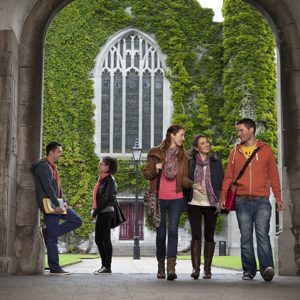
Choosing a course is one of the most important decisions you'll ever make! View our courses and see what our students and lecturers have to say about the courses you are interested in at the links below.
-
University Life

University Life
Each year more than 4,000 choose University of Galway as their University of choice. Find out what life at University of Galway is all about here.
-
About University of Galway
About University of Galway
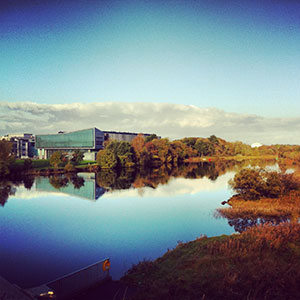
Since 1845, University of Galway has been sharing the highest quality teaching and research with Ireland and the world. Find out what makes our University so special – from our distinguished history to the latest news and campus developments.
-
Colleges & Schools
Colleges & Schools
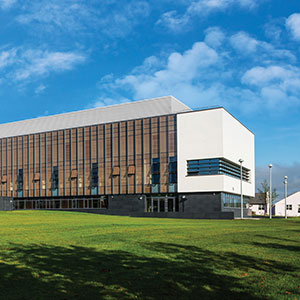
University of Galway has earned international recognition as a research-led university with a commitment to top quality teaching across a range of key areas of expertise.
-
Research & Innovation

Research & Innovation
University of Galway’s vibrant research community take on some of the most pressing challenges of our times.
-
Business & Industry
Guiding Breakthrough Research at University of Galway
We explore and facilitate commercial opportunities for the research community at University of Galway, as well as facilitating industry partnership.
-
Alumni & Friends

Alumni & Friends
There are 128,000 University of Galway alumni worldwide. Stay connected to your alumni community! Join our social networks and update your details online.
-
Community Engagement
Community Engagement
At University of Galway, we believe that the best learning takes place when you apply what you learn in a real world context. That's why many of our courses include work placements or community projects.
 Accessibility & Language
Remotely connect to a Windows workstation (RDP)

Remote Desktop Protocol (RDP) enables you to login to a Windows workstation remotely. Just like in the office, all services may be accessed remotely by connecting to a Windows workstation on-campus, including:
- Employee Records (Core) - Back Office
- Finance System (Agresso) - Back Office
- Reporting (Discoverer)
- Student Records (Quercus) - Back Office
If you do not have a Desktop workstation in the office, there are other methods to connect remotely.
To setup remote access initially to your workstation, you will need to be on-campus at your workstation.
You only need to complete these steps once.
Remote access to your workstation on campus is supported from any laptop/workstation. Remote access to laptops is not possible.
Prerequisite 1 - Windows Operating System
The workstation on-campus must be running:
- Windows 11 or Windows 10
- Professional/Enterprise version
All workstations purchased under the University of Galway Central Procurement Contract are supported.
Your workstation must have received all latest Windows updates.
Learn more about how to check your Windows OS version
Prerequisite 2 - Enable Remote Access to your workstation
You can configure your workstation to allow remote access with a few easy steps.
- Select Start, select Settings, then select System.
- Select Remote Desktop, toggle the option Enable Remote Desktop to On.
- Select Confirm on the pop-up dialog box to enable Remote Desktop.
Ensure your user account is listed in the "Remote Desktop Users" tab.
Prerequisite 3 - Enable "Auto Start Up"
This step should enable your workstation to automatically turn-on at 07:00 each weekday morning. This may be useful in the scenario that you accidentally turn off your machine.
- Open File Explorer on your Taskbar

- Click on This PC or My Computer, and then double-click on the University of Galway Applications folder

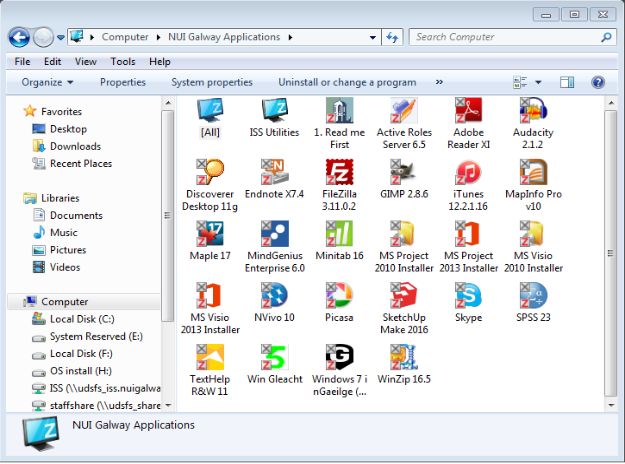
- Double-click on Auto Start Up
Prerequisite 4 - Configure power settings
The workstation must be powered-on in order to connect. ISS cannot power-on workstations remotely.
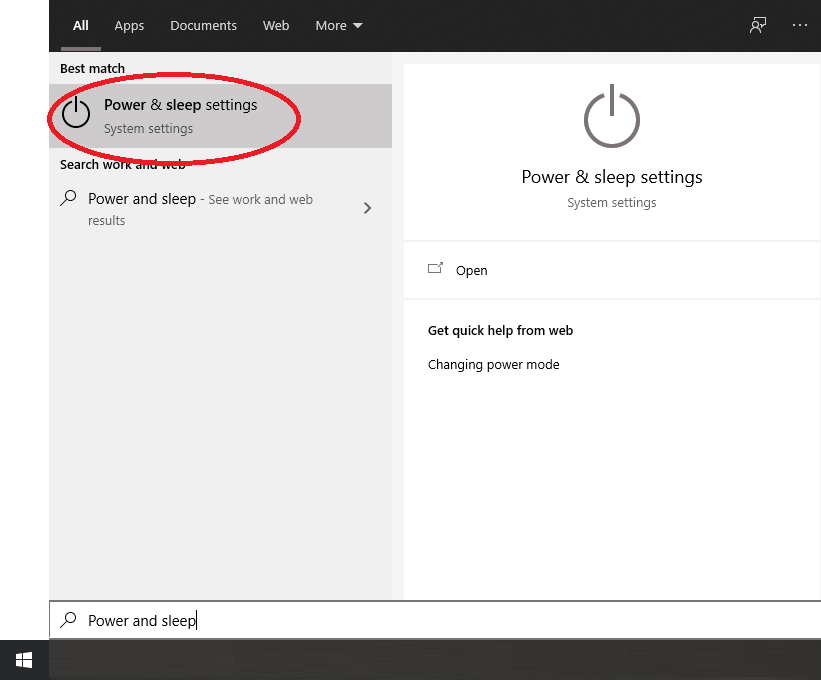
- In the search box beside the start button type: Power and sleep settings
- Press Enter, this will open Power & Sleep settings
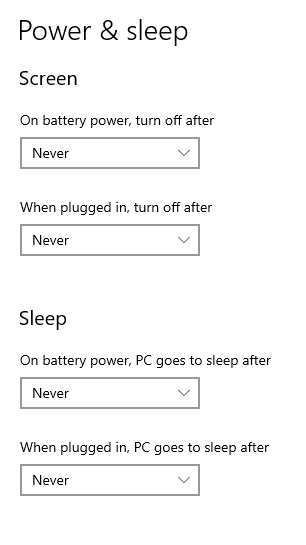
- Change all screen and sleep options to Never as below:
Prerequisite 5 - Get your workstation information for the ticket
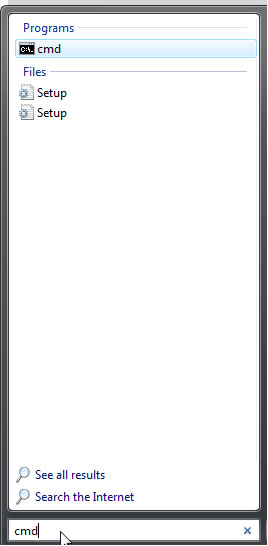
- Select the windows icon to access the search function of the Start menu.
- Click in the search box and type in cmd. Click the cmd program.
- Type in ipconfig/all in the Command Prompt window and press the Return key
- Right click, copy and paste this information into the ticket.
Request remote access
To request access, log a ticket with the Library & IT Service Desk under the following category:

Please include the following information in the Request Detail box:
- The name of the staff member requiring the access
- Email address of the staff member
- University of Galway Staff ID
- Operating system of your off-campus device
- IP Address of your Windows workstation on-campus - this is contained in the output from Prerequisite 6
- MAC Address of your Windows workstation on-campus - this is contained in the output from Prerequisite 6
- Dell Service Tag of your Windows workstation on-campus - you will find this on the asset tag sticker or on your Desktop wallpaper (7 digits long or it may start with GALW-XXXXXXX)
- Reason for requesting access
- Ensure that your PC/laptop meet ISS security requirements to allow the VPN service to be installed on your computer.
Note: Students may only request access to a workstation/server using the Client-based VPN.

Connect using the Terminal Sessions method (Windows remote users)
This method is only available to staff connecting from a Windows computer. Students/External Users must use the Client-based VPN.
- Using Microsoft Edge, go to Staff VPN
- Login using your Campus Account
- Under the Terminal Sessions tab, click on the machine you wish to connect to:

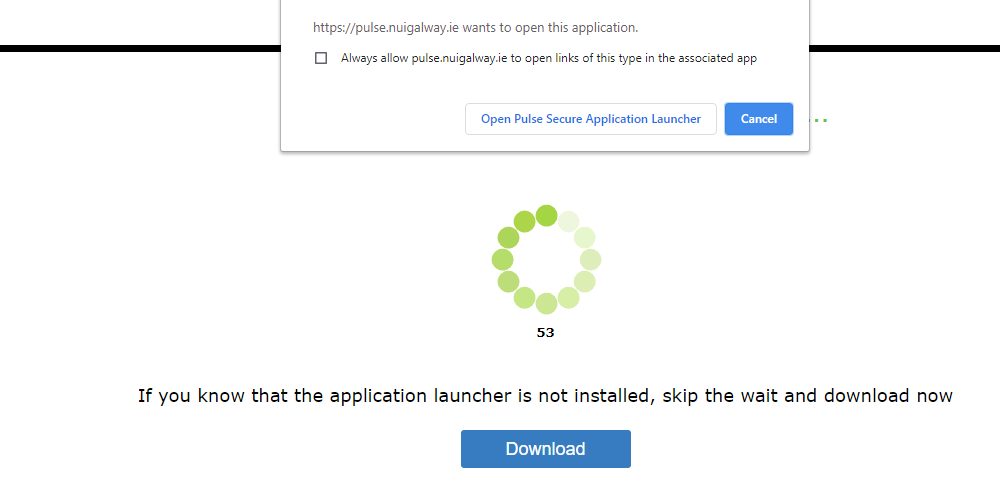
- If prompted, Open Pulse Secure Application Launcher. Otherwise, you may need to install this application first.
- That’s it, you should now be connected!

Connection error
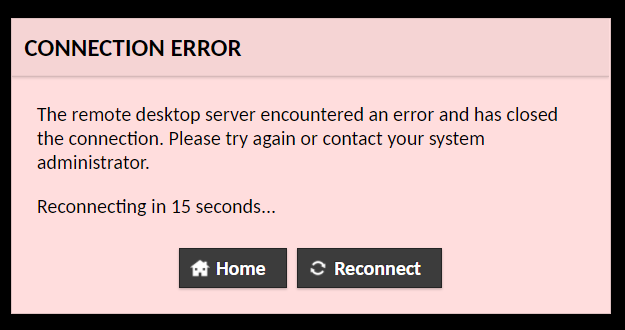
If you see this error, make sure the PC is turned on and connected to the network. If possible, you could ask a colleague that is on-campus to check if your workstation is switched on. Please make sure that you have completed all prerequisite instructions at the top of this page.
ISS staff do not have the ability to remotely turn-on Windows workstations and most ISS staff are working remotely.
How do I connect to a Windows machine without using Campus Account/UDS credentials?
Windows workstations and servers which are not joined to the UDS domain will require you to login with a local account. All Windows servers in the DMZ will require login with a local machine account.
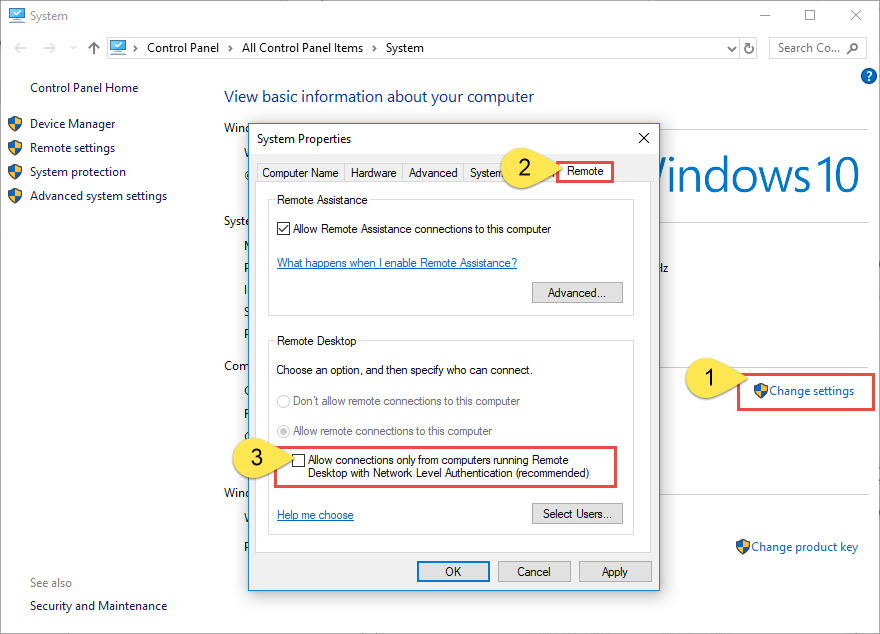
Network Level Authentication (NLA) must be disabled on the machine you are connecting to.
In Windows 10, go to Control Panel -> System -> Change settings and and note that Network Level Authentication must be unticketed as below:
- Contact the System Owner to get local credentials
- Connect to myfiles.nuigalway.ie and connect to the relevant IP Address (e.g. RDP to 1.2.3.4)
The password for RDP does not work. What should I do?
Avoid the characters " , £ , @ , ~ , # in domain account passwords. There is a limitation with keyboard mappings on the current version of software which results in incorrect keyboard mapping over the RDP session for these characters.
The following workaround is available if these characters are required.
- Install the US keyboard mapping on the laptop you are using to connect to myfiles.nuigalway.ie. The link below illustrates the instructions to do this on windows 10
- Switch to US language on the laptop you are using to connect. In windows 10, this can be achieved by clicking on “ENG” on taskbar or pressing windows key + SPACE.
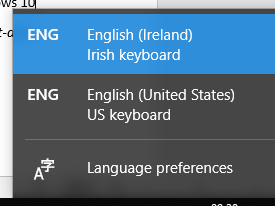
- It is then possible to use these characters on the remote RDP session
- You can switch back and forth between Irish and US keyboard without disconnecting from VPN or RDP sessions
Need help?
The Library & IT Service Desk is here to support our colleagues working remotely.