-
Courses

Courses
Choosing a course is one of the most important decisions you'll ever make! View our courses and see what our students and lecturers have to say about the courses you are interested in at the links below.
-
University Life

University Life
Each year more than 4,000 choose University of Galway as their University of choice. Find out what life at University of Galway is all about here.
-
About University of Galway

About University of Galway
Since 1845, University of Galway has been sharing the highest quality teaching and research with Ireland and the world. Find out what makes our University so special – from our distinguished history to the latest news and campus developments.
-
Colleges & Schools
Colleges & Schools
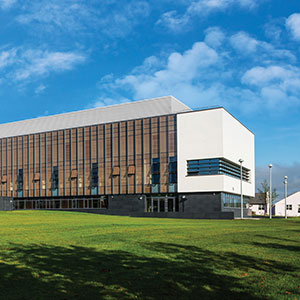
University of Galway has earned international recognition as a research-led university with a commitment to top quality teaching across a range of key areas of expertise.
-
Research & Innovation

Research & Innovation
University of Galway’s vibrant research community take on some of the most pressing challenges of our times.
-
Business & Industry
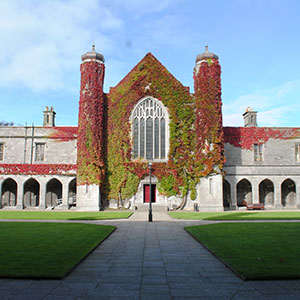
Guiding Breakthrough Research at University of Galway
We explore and facilitate commercial opportunities for the research community at University of Galway, as well as facilitating industry partnership.
-
Alumni & Friends

Alumni & Friends
There are 128,000 University of Galway alumni worldwide. Stay connected to your alumni community! Join our social networks and update your details online.
-
Community Engagement
Community Engagement
At University of Galway, we believe that the best learning takes place when you apply what you learn in a real world context. That's why many of our courses include work placements or community projects.
 Accessibility & Language
Change Language
Change the language of your device
Introduction
University of Galway standard devices ship with English as standard.
However, you can change this to your preferred language. This is for system settings only.
In the example below, we are using a standard Windows 11 device and changing from English to Gaeilge.
Microsoft's guidance can be found here
Apples guidance can be found here
Users of Microsoft Office can follow instructions here for both Windows and Apple Mac devices.
Finally you may need Admin rights. You will need your University account details to access this page.
Please note these instructions may change over time.
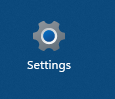
Step 1 - Click on Settings

Step 2 - Click on Time & Language

Step 3 - In Preferred Languages, click Add a Language
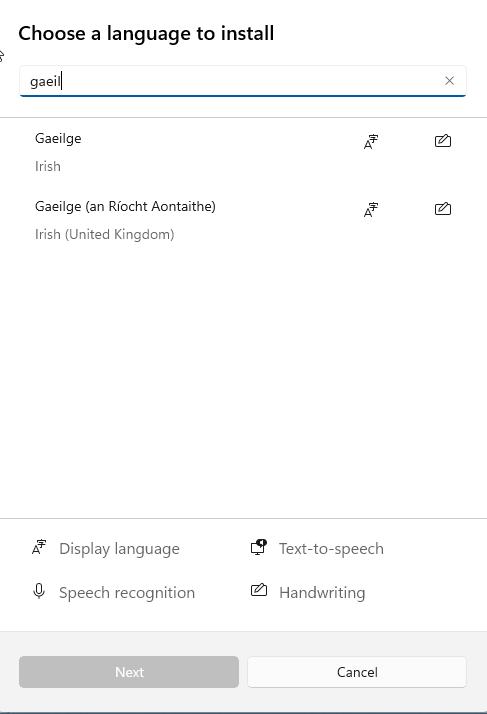
Step 4- Start to type the language you wish to install. In this example, we want to install Gaeilge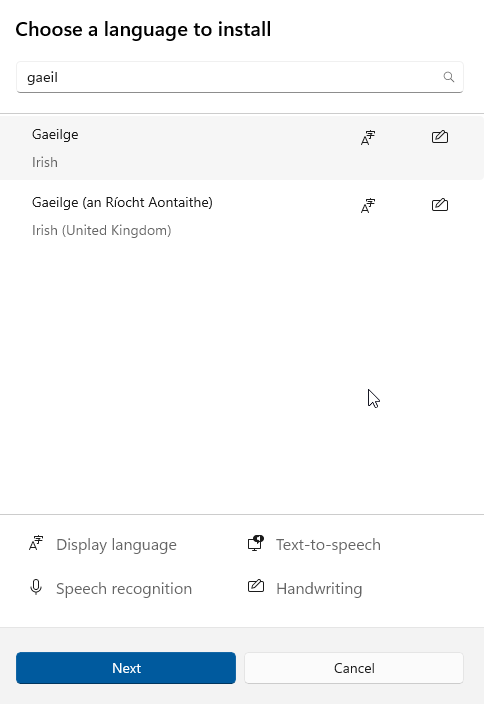
Step 5 - Click/Highlight the language you wish to install and click Next
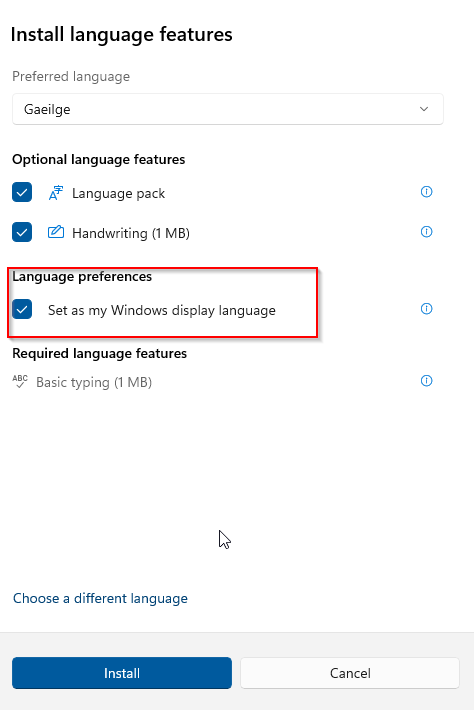
Step 6 - Choose the settings you wish to use. If you wish to have Windows to display the language in terms of Menus/ Notifications etc, choose Set as my Windows display language
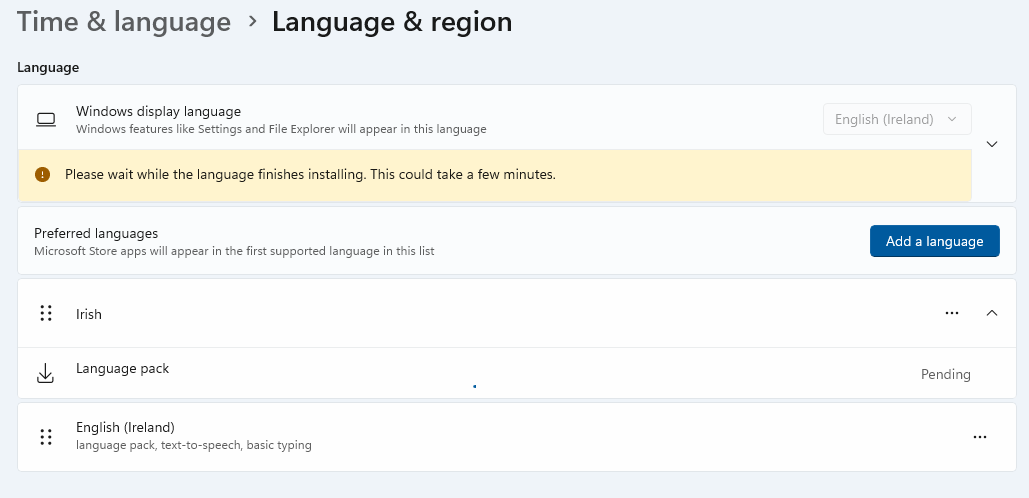
Step 7 - The install will commence

Step 8 - When finished, you will be prompted to sign out of Windows. It is advisable to save any open work prior to clicking Sign Out
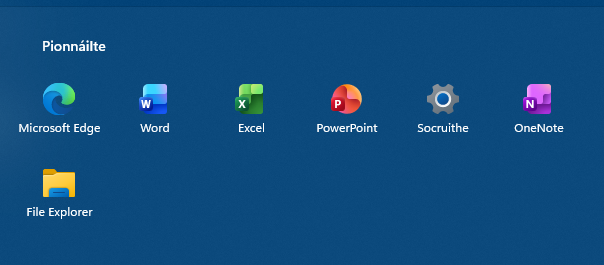
Step 9 - When you log back your new default system language will be in place where there are direct language replacements available. So you may find that some words/functions will not change.
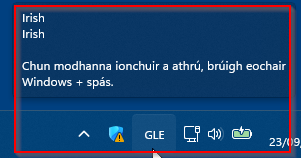
Step 10 - You can switch input methods by clicking on the system menu at the bottom