-
Courses
Courses
Choosing a course is one of the most important decisions you'll ever make! View our courses and see what our students and lecturers have to say about the courses you are interested in at the links below.
-
University Life
University Life
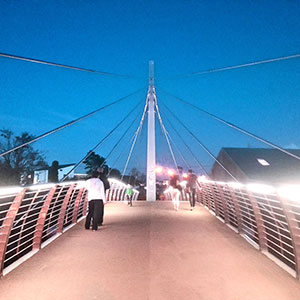
Each year more than 4,000 choose University of Galway as their University of choice. Find out what life at University of Galway is all about here.
-
About University of Galway
About University of Galway
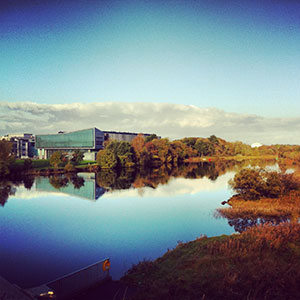
Since 1845, University of Galway has been sharing the highest quality teaching and research with Ireland and the world. Find out what makes our University so special – from our distinguished history to the latest news and campus developments.
-
Colleges & Schools
Colleges & Schools
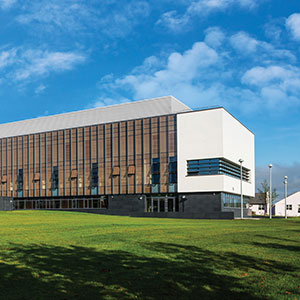
University of Galway has earned international recognition as a research-led university with a commitment to top quality teaching across a range of key areas of expertise.
-
Research & Innovation
Research & Innovation
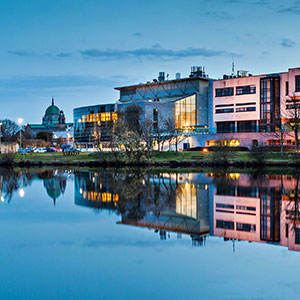
University of Galway’s vibrant research community take on some of the most pressing challenges of our times.
-
Business & Industry
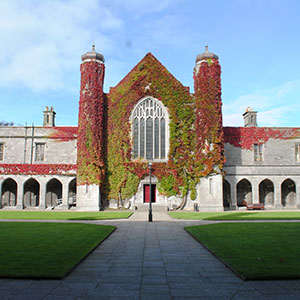
Guiding Breakthrough Research at University of Galway
We explore and facilitate commercial opportunities for the research community at University of Galway, as well as facilitating industry partnership.
-
Alumni & Friends
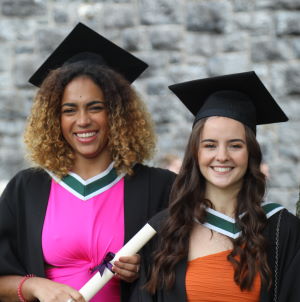
Alumni & Friends
There are 128,000 University of Galway alumni worldwide. Stay connected to your alumni community! Join our social networks and update your details online.
-
Community Engagement
Community Engagement
At University of Galway, we believe that the best learning takes place when you apply what you learn in a real world context. That's why many of our courses include work placements or community projects.
 Accessibility & Language
How to complete the form for connecting a device to the NUI Galway network
How to complete the form for connecting a device to the University of Galway network
IMPORTANT: All fields must be completed; incomplete service desk fields on the ticket will delay the ticket as you will be requested to supply all data before the ticket is processed.
You can log a ticket on https://servicedesk.universityofgalway.ie using the following category:
- Request Type: 03 - Desktop/Laptop Support
- New Device - Request Wired Network Connection
- New Device Connection
Personal devices can only use the WIFI network only.
Do not power on your new device until you have logged the ticket and you have been contacted by the ISS technician to proceed.
Please fill in the following details including reading and agreeing to the Declaration of Responsibility.
Contact details of main userProvide the name and staff/student ID number of the end user of the device along with their email address, associated department, wall box and a contact number at which the end user can be reached. |
||||
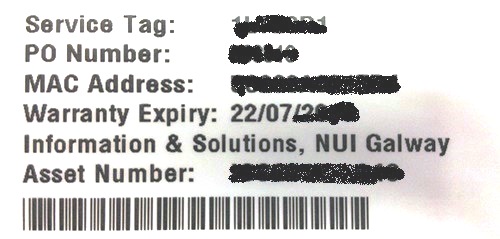
Computer detailsOperating System - Instructions to determine the Operating System for a Windows computer Manufacturer and Model details can be found on the system unit for desktop computers or on the bottom of a laptop computer. On all new Dell equipment the Ethernet Address (Mac Address) and Service Tag number will be displayed on a label, as shown below, on the box.
If the label is unreadable, you can find the same information using these instructions to determine the Ethernet Address for your computer |
||||
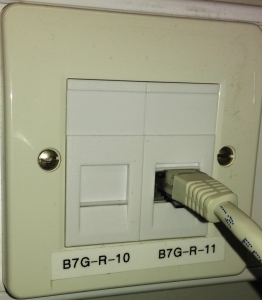
LocationBuilding and Room number must be completed. The wallbox number is located on the network point in your office. It will be labelled something like 2-A-12, B1A-C-21, D-21, Drop 12 or NUR-1-18. Indicate if a deviceis already connected to the wallbox listed as we will need to check the port. |
||||
Final StepOnce the online form is completed it will automatically log a ticket in the Service Desk An ISS technician will contact you to schedule a day/time to remotely configure your new device to the Campus Network. The remote configuration process will take approximately 30mins. Please note all University purchased standard devices must authenticate to UDS. Please note for newly purchased Dell PC's do not power on until you have been contacted by an ISS technician.
|