-
Courses
Courses
Choosing a course is one of the most important decisions you'll ever make! View our courses and see what our students and lecturers have to say about the courses you are interested in at the links below.
-
University Life

University Life
Each year more than 4,000 choose University of Galway as their University of choice. Find out what life at University of Galway is all about here.
-
About University of Galway
About University of Galway
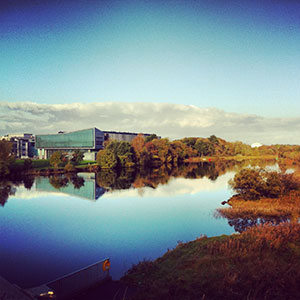
Since 1845, University of Galway has been sharing the highest quality teaching and research with Ireland and the world. Find out what makes our University so special – from our distinguished history to the latest news and campus developments.
-
Colleges & Schools
Colleges & Schools
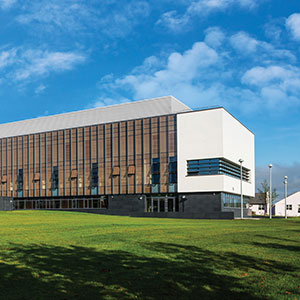
University of Galway has earned international recognition as a research-led university with a commitment to top quality teaching across a range of key areas of expertise.
-
Research & Innovation
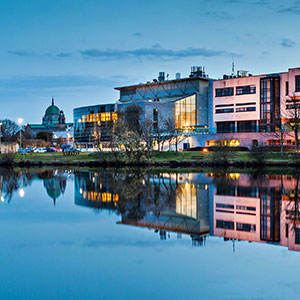
Research & Innovation
University of Galway’s vibrant research community take on some of the most pressing challenges of our times.
-
Business & Industry
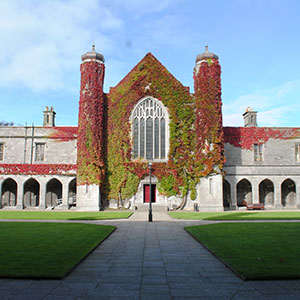
Guiding Breakthrough Research at University of Galway
We explore and facilitate commercial opportunities for the research community at University of Galway, as well as facilitating industry partnership.
-
Alumni & Friends

Alumni & Friends
There are 128,000 University of Galway alumni worldwide. Stay connected to your alumni community! Join our social networks and update your details online.
-
Community Engagement
Community Engagement
At University of Galway, we believe that the best learning takes place when you apply what you learn in a real world context. That's why many of our courses include work placements or community projects.
 Accessibility & Language
Content - Rich Text
Creating Standard Web Content
'Rich Text' collectively describes the formatted text, links, and images that make up the content of most webpages.
Please Note:
This page demonstrates & explains the 'Rich Text' Content Type (CT) - perfect for creating standard web content - and all its optional features.
The CMS has some other CTs that allow you to add rich text (i.e. formatted text, links, and images) - but typically with additional styling or room for imagery. These include
'3D Content Panel', 'Accordion', 'Expanding Image Panels', 'Image Roundel with Description', 'Show / Hide', and 'Sidebar Content Box'.
Rich Text
Everything on this page was inserted using our most versatile Content Type (CT): 'Rich Text'.
As it's name suggests, this CT allows you to add rich text (i.e. Formatted Text, Links and images), with an optional heading. The text you enter into it takes up all the available width on the webpage.
The 'Rich Text' content type has 4 items: 'Name', 'Heading', 'Rich Text', 'Use background colour', and 'Limit text length'.
- As with all content types, 'Name' allows you identify this content in the CMS - it does not appear on the published web page. You must fill this field in.
- 'Heading' is normally a H2 on the published webpage - but if you choose to use a background colour, it will be a H3. If you do not wish the heading to appear, simply leave this field blank.
- 'Rich Text' holds any text, links, and foreground images (from the CMS's media library) that you wish to add to your webpage using the WYSIWYG editor, which offers MS Word-like features (bold, italic, bullets, undo, etc.).
The text colour is the University's dark-grey on a white background.
You must fill in this field. - 'Use background Colour' is optional. If you check this checkbox, 2 things will happen:
- You'll get some extra options:
- 'Background Colour' - This allows you to choose the colour behind your heading.
- 'Colour entire Block' - Select this option if you wish the entire block of content (heading and rich text) to have the selected background colour.
- Your 'Heading' (if you've entered one) will be output as a H3.
Note: For accessibility compliance (a legal requirement), always ensure a H2 appears on the webpage above your H3 heading.
- You'll get some extra options:
- 'Limit text length' is only used on ultra-wide pages - it will limit the width of any paragraphs to that of a widescreen page. The background colour will fill the full width of the page, creating a pleasing margin of colour to the left and right of the more-easily read text (due to its shorter line-length).
Our 'Rich Text' content types can contain up to 100,000 characters (enough for 33 single-spaced A4 pages). So the content you add into it can be as long (or as short) as you like.

Using Multiple Content Types
Usually, instead of having a single content type (CT), containing a very long block of text and images, editors decide to add multiple CTs, each containing shorter blocks of content.
This approach enables you to segment your content, keeping related text and images together.
And segmenting your content makes it easier to:
- Re-order your page content (change the flow).
- Add other content types in between your existing blocks of content.
- (Less commonly) Share your content with other web pages.
Content with no heading
When taking this approach, you may not want to have a heading on every segment of text you create. This is why you can leave the 'heading' of the 'Rich Text' CT blank.
Best practice is to provide a heading in the first 'Rich Text' you add to the page (which will insert a heading at the top of the page). For all subsequent 'Rich Text' CTs on the page, the heading is optional.
Additional 'Rich Text' CTs are seamlessly added to the webpage. To demonstrate this, we deliberately used more 'Content (Rich Text)' Content Types than strictly necessary. Use the below link to reveal each one and then scroll up to see how many there are on the page.
Reveal All 'Rich Text' Content Types on this page Hide them again
Content Boxes
Content boxes used to have their own content type but now, they can be created, using the 'Rich Text' CT, simply by clicking its 'Use background colour' checkbox:
- The heading they use is a H3 - instead of the H2 that 'Rich Text' CTs normally create.
- As demonstrated here, that heading is styled to use a strong background colour and white text - the text below the heading appears as normal.
- Optionally, the entire block can use the heading's background colour. This makes all its text white (if the background colour is dark) or else black (for lighter background colours).
- The old 'Content Box' CT allowed you to specify the box's width. This proved to be an unnecessary complication, so we've simplified it - now the content automatically takes up the available space.
The blue content box (at the top of this page) was created by adding a 'Rich Text', entering a heading and rich text, enabling background colour, choosing the colour blue, and applying it to the entire content block.
You can leave the heading blank but still specify a heading colour, applying it to the entire block. That's what we've done here, to create a simple block of text on a background colour.
For ultra-wide page layouts, you can choose to 'Limit text width'. This restricts the text to the width of a widescreen page, while the background colour spreads across the full width of the page. Use this option, without a header, to emulate the 'Full-Screen Centred Rich Text Box' CT, which has now been retired.
To see this feature in action, use the toggle, below, to switch this page to an ultra-wide page, and then compare this purple box to the yellow one, below it.
Emulating Alert Banners
When creating coloured blocks of text (aka content boxes), there is a 'Post-it yellow' option, which can be used to emulate alert banners, but, in most cases, it is better to use the dedicated Alert Banner CT, which allows you to select an alert icon that appears in the header.
Page width (and other options) are controlled by the section's 'Page Customisation Keywords'. The current view uses these keywords: . See the interactive demonstration for full information.